Introduction
The Segment Instruction is used to split a workflow into sections:
- Each segment can be expanded and collapsed individually.
- Each segments holds an arbitrary number of Workflow Instructions.
Segments are preferably used to manage large workflows with hundreds of jobs:
- Editing a workflow with 1000 jobs requires substantial resources in terms of CPU and memory. This can eat up the user machine's memory and can slow down rendering on the screen.
- Use of segments limits the number of concurrently displayed jobs and other instructions and will keep resource consumption in limits.
Segments do not impact the processing of jobs by a Controller or Agents.
- Segements are used in the JOC Cockpit only, they are not forwarded to Controller and Agents.
- The Configuration view offers managing segments in workflows.
- The Workflows view makes use of segments to locate orders in a workflow.
Workflow Instruction: Segment
In the Configuration view for workflows, a Segment Instruction is added from the toolbar by dragging and dropping the instruction:
- Segments are assigned a label for the unique position of the segment in the workflow.
- Inside a segment any other instructions can be added.
- Segments can be nested.
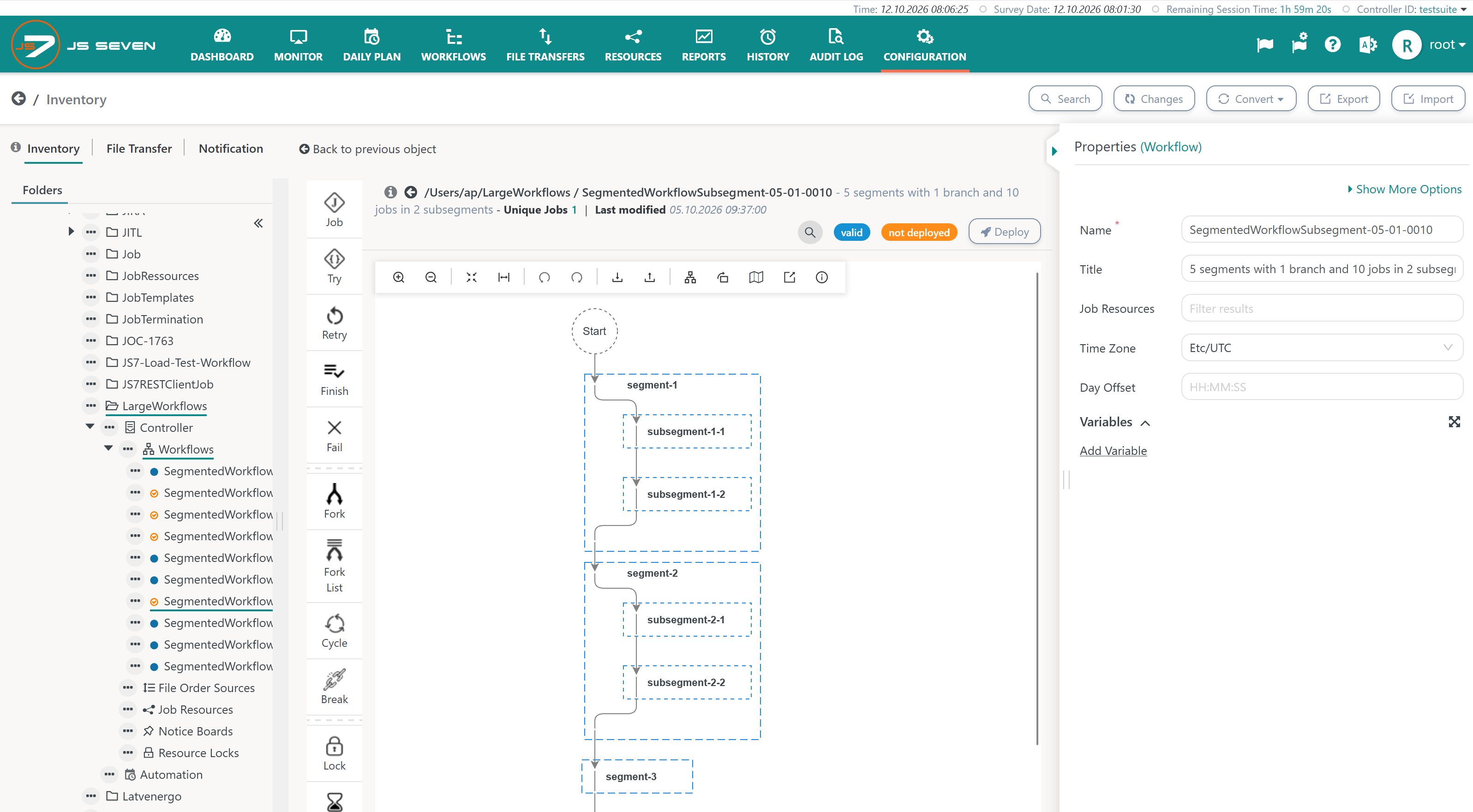
The Segment Instruction offers the following GUI operations:
- Clicking the border of a Segment Instruction will expand the segment. Clicking once more, will collapse the segment.
- Clicking the segment's label invokes the Properties panel to update the label.
- Any other instructions can be freely added and moved inside the segment.
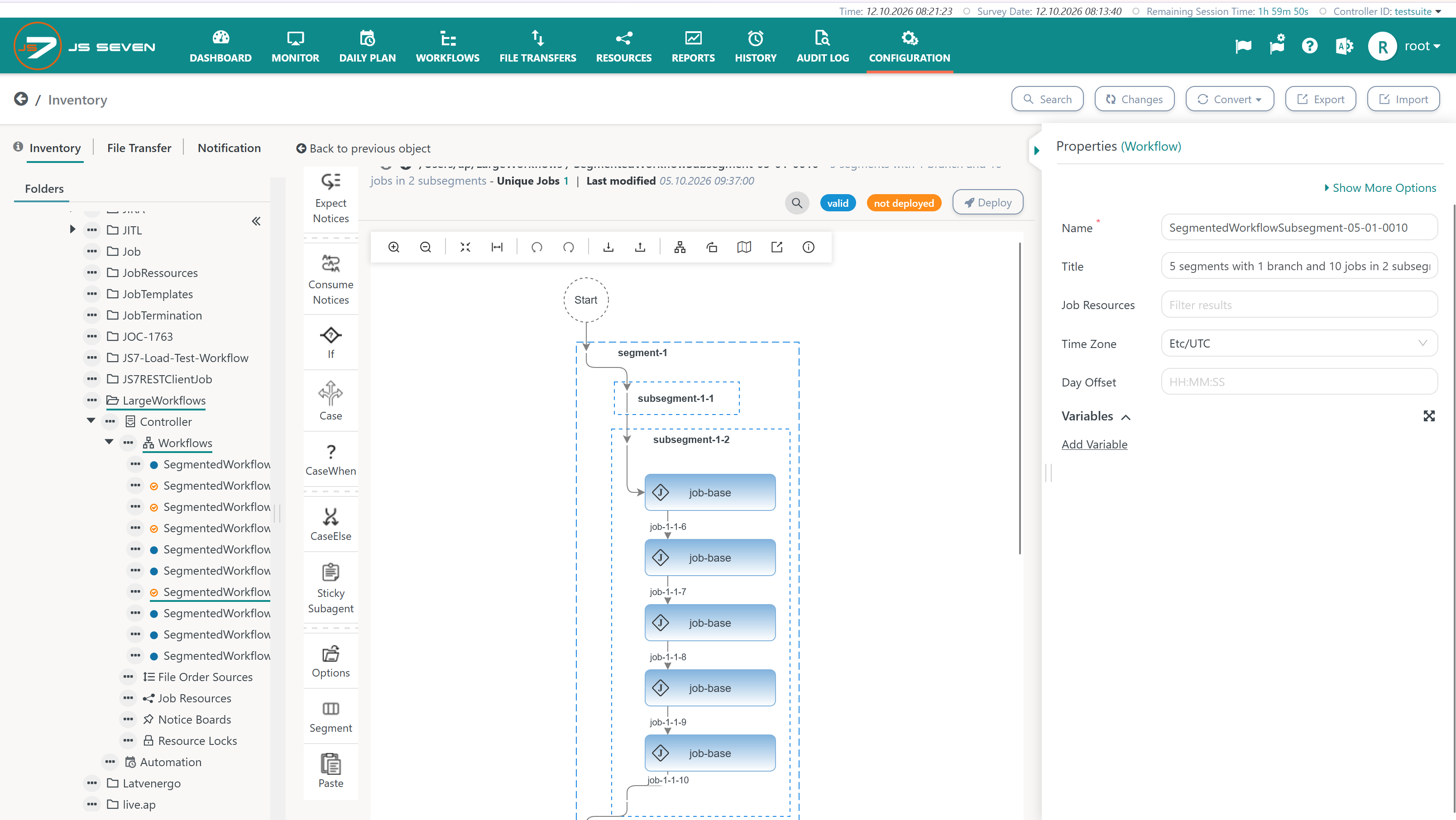
Executive View: Workflows
In the Workflows view, segments are displayed by default, if available from the workflow.
- Users can switch between the tabular view and the segment view.
- When orders are added to the workflow, they are displayed at segment level from the related order state and the number of orders included. This allows knowing how many orders in which state are passing a segment without the need to expand the segment.
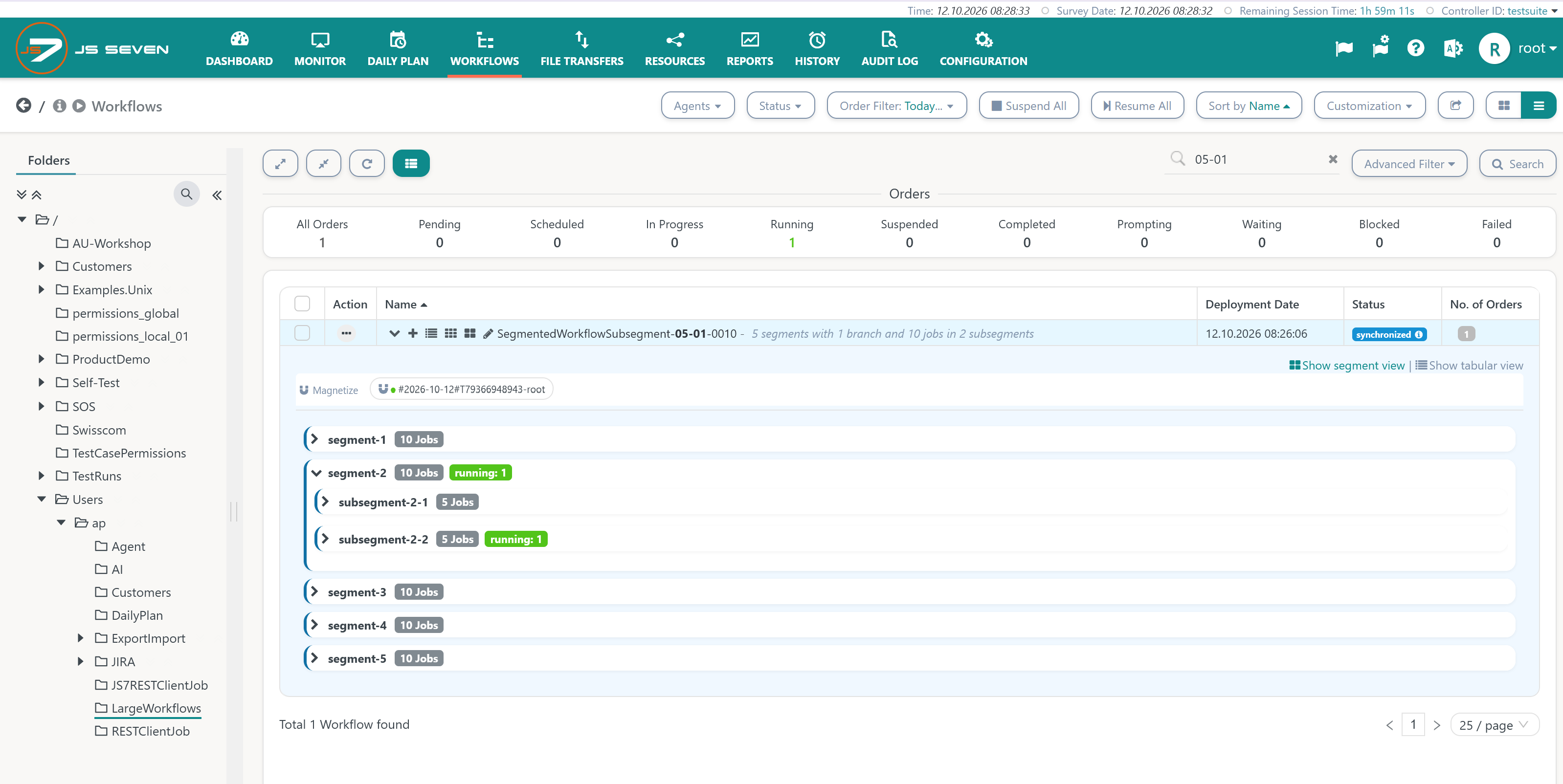
When users expand a segment while orders are available in the segment, the behavior is as follows:
- The instructions inside the segment and orders passing are displayed similar to the tabular view.
- The current segment will automatically collapse, when all orders leave the segment.
- The next segment will automatically expand, when an order enters the segment.
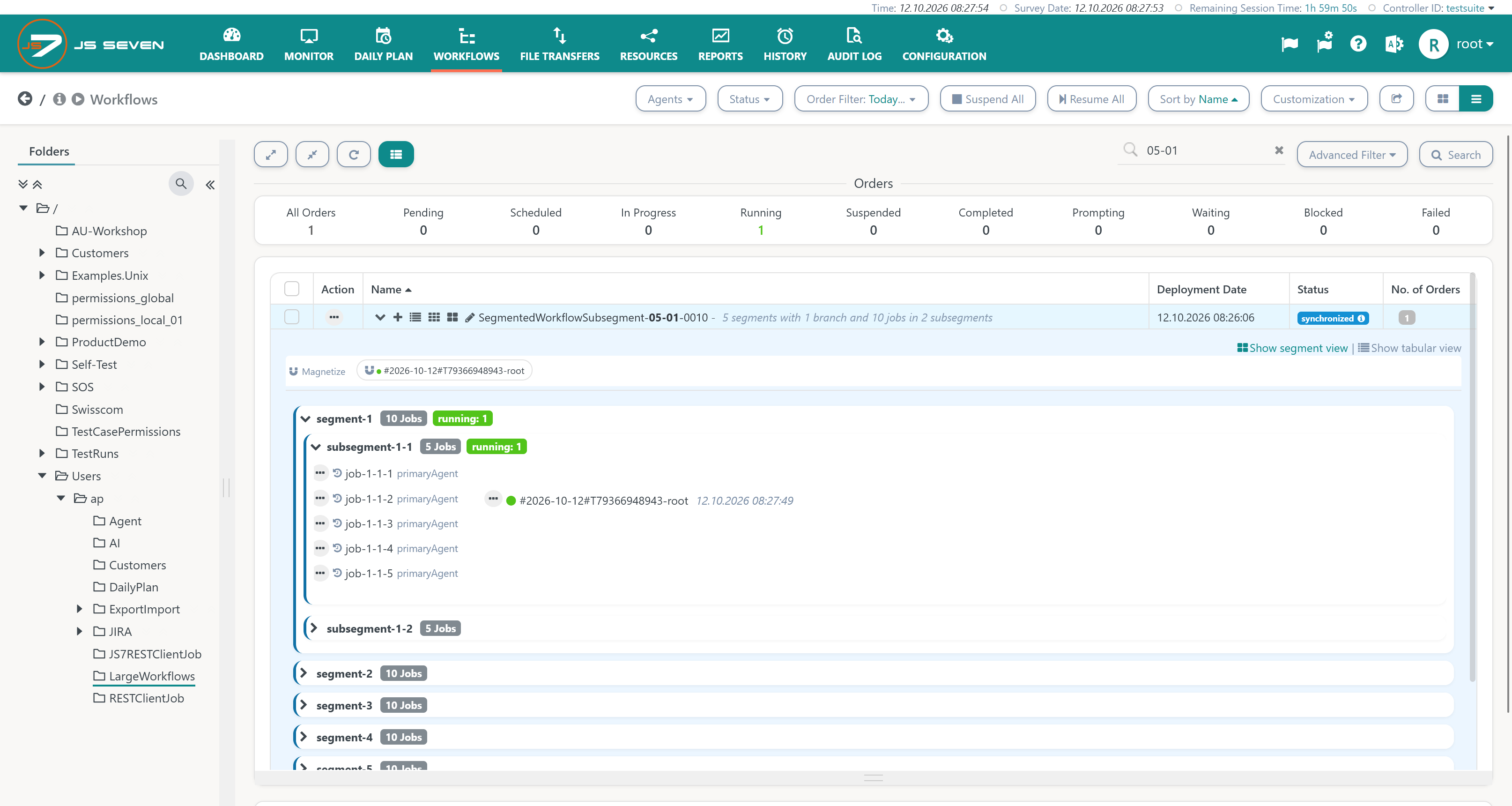
Overview
Content Tools