Introduction
The JS7 - JITL REST API Jobs offer use of jq, https://jqlang.org to process the JSON response of requests to REST APIs.
- The query language is provided by jackson-jq, https://github.com/eiiches/jackson-jq, the Java implementation of jq.
- Users can check the jq manual for relevant explanations how to extract and to process data from JSON responses.
- A few differences between jq and jackson-jq should be considered that are explained from the jackson-jq web site.
JITL REST API Jobs make use of jq 1.7 offered by jackson-jq.
The jq query language can be used with the return_variable argument of JITL REST API Jobs.
Users find more examples how to use jq with their jobs from the JS7 - JITL JS7RESTClientJob.
FEATURE AVAILABILITY STARTING FROM RELEASE 2.8.0
Query Language for Return Values
Let's start from a few practical examples.
Examples
Example for REST Request to /orders/add Endpoint
Find an example for a REST request to the JS7 - REST Web Service API that is made available with the request argument of the JS7 - JITL JS7RESTClientJob.
- Lines 2 to 4 hold general settings for execution with JITL REST API Jobs
- Lines 5 to 52 hold the body of the REST request as suggested by the /orders/add endpoint.
- Users can specify variables from a number of sources: any variables assigned the workflow and job arguments, variables from JS7 - Job Resources and built-in variables can be used, see JS7 - Expressions for Variables. Such variables will be substituted at run-time by the job. The syntax for referencing variables is:
${variable} - The
js7ControllerIdandjs7WorkflowPathvariables are available at global level for any jobs, for a full list see JS7 - Expressions for Variables. - The workflow variable
workflowspecified in the request is assumed to be declared by the underlying workflow.
- Users can specify variables from a number of sources: any variables assigned the workflow and job arguments, variables from JS7 - Job Resources and built-in variables can be used, see JS7 - Expressions for Variables. Such variables will be substituted at run-time by the job. The syntax for referencing variables is:
Example for JSON Response of /orders/add Endpoint
The follwoing JSON response is an example returned from a request to the /orders/add endpoint that adds a few orders:
- The response holds two top-level elements
deliveryDateandorderIds. - The
orderIdselement includes an array of 5 Order IDs created.
From the above example users can access elements of the JSON response and can extract related values using jq queries like this
| Purpose | Query | Return Value |
|---|---|---|
| Return the delivery date | .deliveryDate | "2025-06-20T14:24:34.403+00:00" |
| Return an individual Order ID, for example the first one | .orderIds[0] | "#2025-06-20#T42947440212" |
| Return the comma separated list of Order IDs | .orderIds[] | "#2025-06-20#T42947440212","#2025-06-20#T42947440111","#2025-06-20#T42947439709","#2025-06-20#T42947440110","#2025-06-20#T42947440213" |
| Return an array of Order IDs | [.orderIds] |
|
| Return the number of orders created | .orderIds | length |
|
Example for JSON Response of /orders Endpoint
The follwoing JSON response is an example returned from a request to the /orders endpoint that provides details for 2 orders available in JS7:
From the above example users can access elements of the JSON response and can extract related values using jq queries like this:
| Purpose | Query Example | Return Value |
|---|---|---|
| Return Order IDs and workflow path per order | .orders[] | .orderId, .workflowId.path | #2025-06-23#P13497079036/example/hello#2025-06-23#P13497079036/example/hello |
| Return Order IDs for orders in RUNNING state | .orders[] | select(.state._text == \"RUNNING\") | .orderId | #2025-06-23#P13497079036 |
| Return the number of orders in RUNNING state | [.orders[] | select(.state._text == \"RUNNING\") | .orderId] | length | number of elements |
| Return the number of orders in SCHEDULED or RUNNING state | [.orders[] | select([.state._text] | inside([\"SCHEDULED\",\"RUNNING\"])) | .orderId] | length | number of elements |
Using Return Variables
From above examples the return_variable job argument specifies a JSON document that holds the name and path of Return Variables.
- name: holds the name of the Return Variable.
- path: holds the query to extract data from the JSON response to a REST request.
Example for return_variable Job Argument
[
  {
    "name": "order_ids",
    "path": ".orderIds"
  },
  {
    "name": "order_id",
    "path": ".orderIds[0]"
  }
]
The JS7RESTClientJob and RESTClientJob will create dynamic workflow variables from the indicated Return Variables.
In order to use Return Variables in a subsequent Shell job, they can be mapped to environment variables of the Shell job like this:
- In the Configuration view for the workflow, users can select the job and can specify mappings.
- Users are free to choose the names of environment variables and assign the related Return Variables:
$order_idsand$order_id
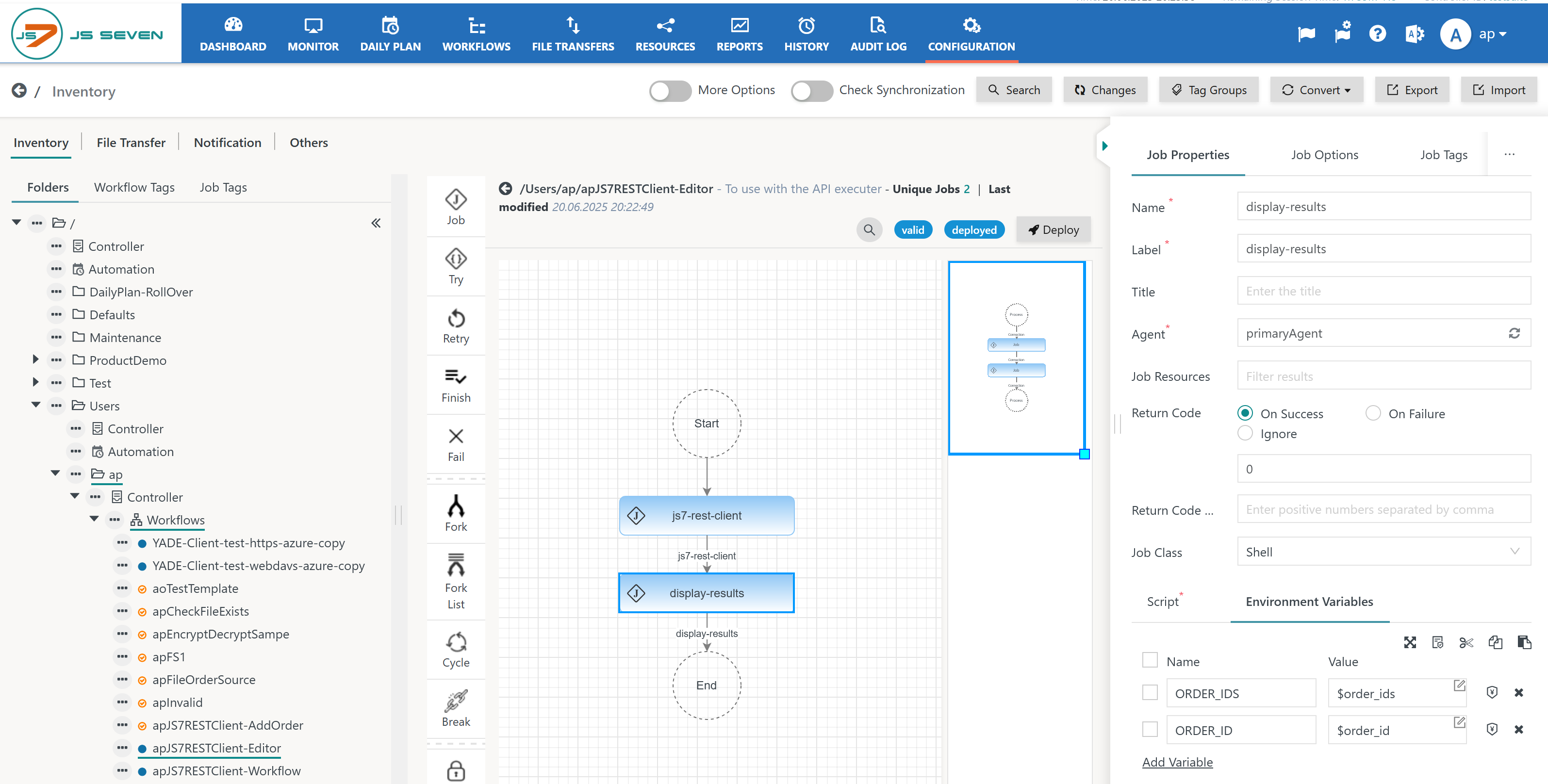
When the job is executed, its log output will look like this:
Example for Log Output of Job
2025-06-20 20:19:41.731+02:00 [MAIN] [OrderProcessingStarted] id=#2025-06-20#T45077780600-ap, Job=display-results, label=display-results, pos=1, Agent(url=https://agent-2-0-primary:4443, name=primaryAgent, time=2025-06-20 20:19:41.666+02:00)
2025-06-20 20:19:41.666+02:00 [MAIN]    [Start] Job=display-results, label=display-results, Agent(url=https://agent-2-0-primary:4443, id=primaryAgent, name=primaryAgent)
2025-06-20 20:19:41.753+02:00 [STDOUT]
Order IDS: ["#2025-06-20#T45078134501-root"]
Order ID: "#2025-06-20#T45078134501-root"
2025-06-20 20:19:41.753+02:00 [MAIN]    [End] [Success] returnCode=0
When specifying Return Variables then users can add comments by introducing JSON elements that will not be considered by JITL REST Jobs:
- Users can add comments from a
_commentelement. - Prefixing
nameandpathelements with an underscore disables processing of the Return Variable.
Example for return_variable Job Argument
[
  {
    "_comment": "earlier version of the query",
    "_name": "order_ids",
    "_path": "[.orderIds]"
  },
  {
    "_comment": "current version of the query",
    "name": "order_ids",
    "path": ".orderIds"
  },
 ]
Processing Instructions
The JITL REST API job templates offer additional options to control and to extend the behavior of jq.
A processing instruction is appended to a query using the separator: ||
Processing Instructions for jq
By default jq creates JSON return values which includes compatible quoting. While this is useful if Return Variables are used for input to later jobs, there are situations when raw, unquoted output is preferable.
Raw output can be specified from the Processing Instruction separator || followed by -r or --raw-output like this:
| Purpose | Query Example | Return Value |
|---|---|---|
| Return JSON compatible output | .orders[] | .orderId | "#2025-06-23#P13497079036""#2025-06-23#P13497078265" |
| Return raw output | .orders[] | .orderId || --raw-output |
|
Processing Instructions for Output Files
An extended syntax to create output files is available from the following processing instructions:
- The processing instruction is appended to a query using the syntax:
|| - Follows one of
>or>>to specify if query results should overwrite existing files or should be appended to existing files. - Follows the path to the output file. Relative paths start from the Agents' working directory that is specified during installation and that defaults to the
<agent-data>directory. - When an output file is written, then the return variable will not hold the output of the query but will hold the path to the file that was created.
| Purpose | Query Example | Comment |
|---|---|---|
| Store Order IDs and workflow path per order to a file | .orders[] | .orderId, .workflowId.path || > /tmp/orders.txt | An existing file will be overwritten |
| Append Order IDs and workflow path per order to a file | .orders[] | .orderId, .workflowId.path || > /tmp/orders.txt | Data will be stored to a new file or will be appended to an existing file |
| Copy response to a file | . || > /tmp/orders.json | The file will hold a copy of the JSON response |
| Create new JSON document and store to a file | [.orders[] | {myOrderId:.orderId, myWorkflow:.workflowId.path}] || > /tmp/orders.json | The file will hold an array of new elements:
|
Logging
Responses from the JS7 REST API can grow large. For example, if a query of the order history or task history is performed then size of output can exceed several MB.
To this purpose the REST responses will not be added to log ouput at info level.
Users who wish to analyze responses
- can write the response to a file, see above Processing Instructions,
- can run the job with
debuglog level to find the response body in the log output.
| Log Level | Request | Response |
|---|---|---|
info | yes | no |
debug | yes | yes |
Find details how to specify log levels from the JS7 - JITL Common Parameterization article.
Resources
Overview
Content Tools